Pattern Maker Guide
Guides
How to Use the Pattern Maker
The Pattern Maker is the heart of Xstitchify. Upload any image — a photo, a drawing, a logo — and it'll turn it into a cross-stitch chart with real DMC thread colours. Here's everything you need to know.
What images work best?
You can upload pretty much anything, but some images give you much better results than others:
- High-contrast images work beautifully — think a dark silhouette against a light background, or a bright flower against green leaves.
- Simple subjects with clear shapes convert more cleanly than busy, detailed scenes.
- Close-up photos tend to look better than wide landscape shots, because there's more detail in the subject.
- Illustrations and logos often make fantastic patterns because they already have clean lines and limited colours.
Tip: Before uploading, crop your image to focus on the part you actually want to stitch. A tightly cropped photo of your dog's face will give you a much better pattern than a wide shot of your dog sitting in a field.
Uploading your image
- Go to the Pattern Maker page.
- Either drag and drop your image onto the upload area, or click it to browse your files.
- JPG, PNG, and most common image formats are supported. The maximum file size is 10MB.
Setting the size and colours
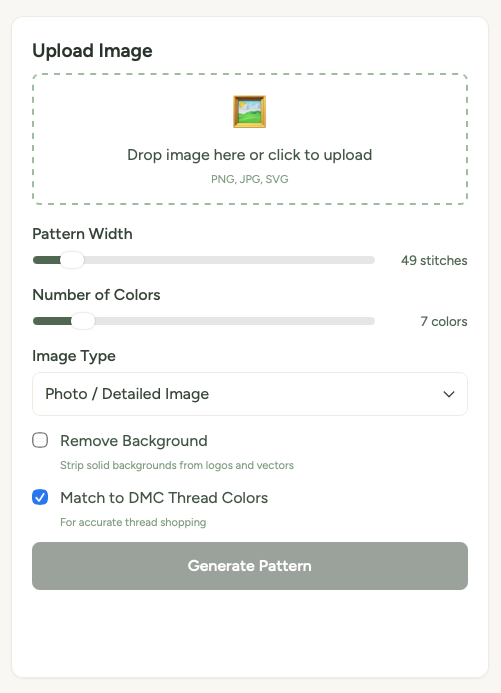
Once your image is loaded, you'll see a few controls on the left panel:
Pattern width (stitches)
This slider controls how wide your finished pattern will be, measured in stitches. A higher number means more detail but a bigger project. For a first try, somewhere around 50-80 stitches wide is a nice balance between detail and project size.
Number of colours
This controls how many different thread colours your pattern will use. You can choose anywhere from 2 to 8 colours (more with a paid plan).
Here's the thing most people don't expect: fewer colours often looks better. A 4-colour pattern can look incredibly striking, while an 8-colour version of the same image might look muddy. Start low and increase if you feel like you're losing important detail.
Colour palette
The colour palette dropdown lets you steer the overall colour feel of your pattern:
- Rainbow — the full spectrum, great for colourful photos
- Pastel — soft, muted tones for a gentle look
- Warm — reds, oranges, and yellows for cosy, warm images
- Cool — blues, greens, and purples for calming designs
Generating your pattern
- Once you're happy with your settings, click Generate Pattern.
- The pattern will appear in the preview area on the right. This usually takes just a few seconds.
- You'll see a preview of your pattern along with the DMC thread colours it's using.
After generation: editing, saving, and downloading
Once your pattern is generated, you've got a few options:
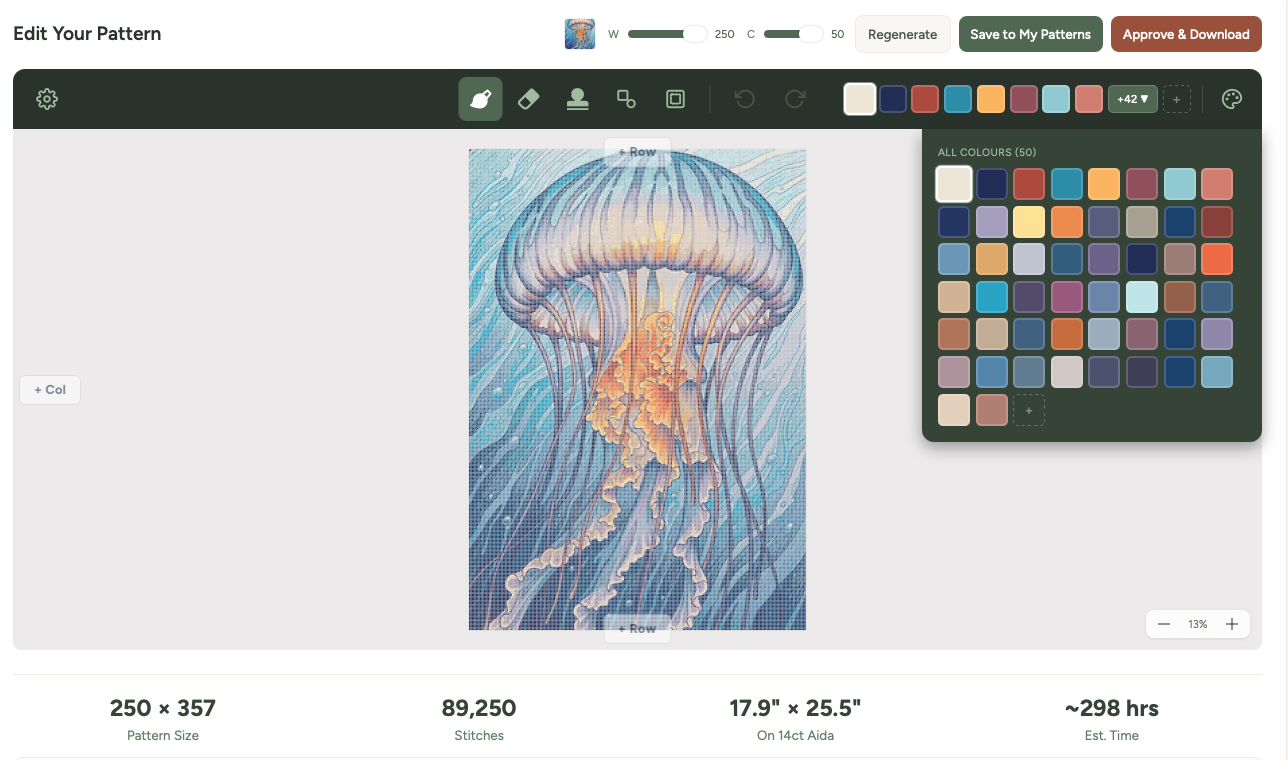
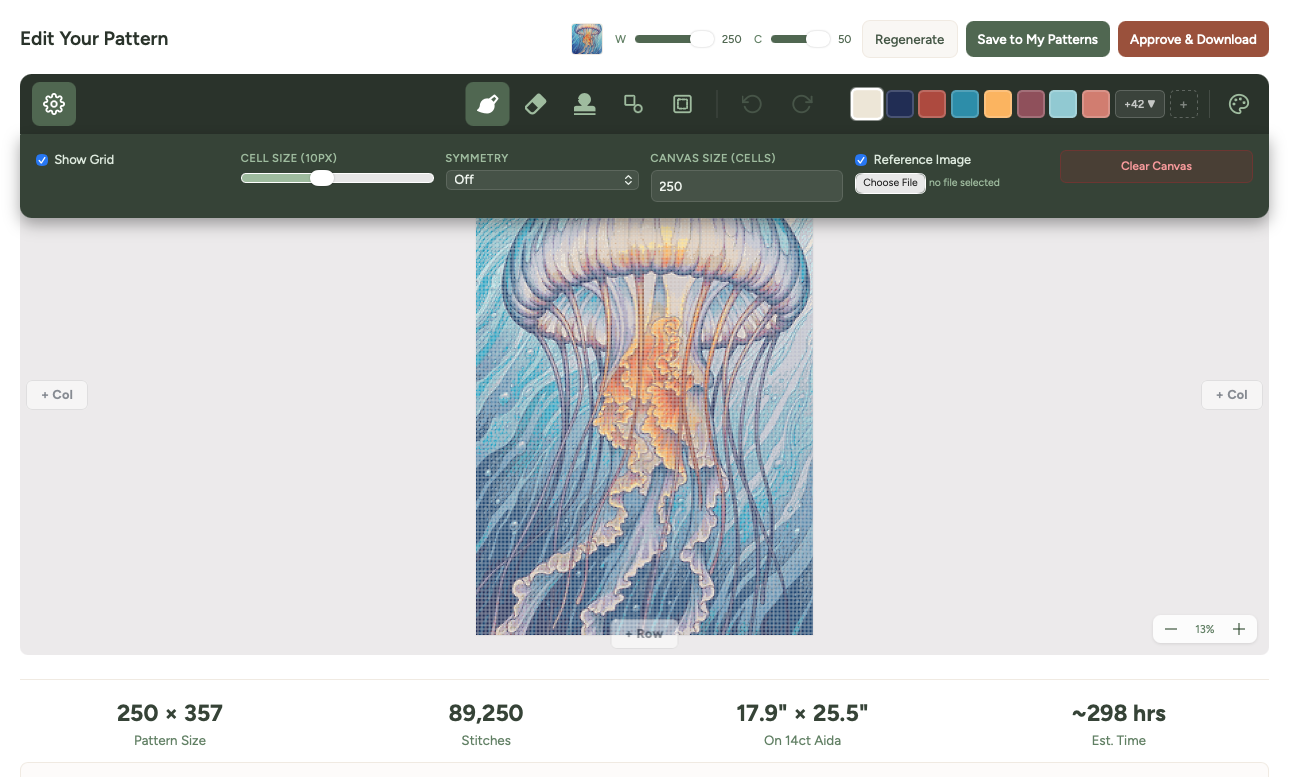
- Edit in the inline editor — click individual stitches to change their colour, or use the editor tools to refine your pattern. This is great for cleaning up edges or removing stray pixels.
- Regenerate — not happy? Adjust the colour count or width and hit generate again. You can try as many variations as you like.
- Save to Library — save the pattern to your account so you can come back to it later.
- Download — grab your pattern as a PDF (with a full chart, thread list, and symbols) or a PNG image.
Tips for better patterns
Crop first. The single biggest thing you can do to improve your pattern is to crop the image before uploading. Focus on what matters.
Simpler is better. A clean illustration or a close-up portrait will always convert more beautifully than a busy group photo. Think about what will look good as tiny coloured squares.
Experiment with colour counts. Try your image at 3, 5, and 7 colours. You might be surprised — sometimes a lower colour count creates a more dramatic, graphic look that's actually more appealing (and much easier to stitch).
Try different palettes. The same photo can look completely different with a Warm palette vs a Cool one. It only takes a second to regenerate, so have a play.